Google Drive connector
The Google Drive connector exposes Drive as a set of MCP tools (list files, read content, search, etc.) through the PolicyArc gateway. Every tool call is policy-checked before it reaches Google.
You must have a Google identity provider connected first. The connector uses the same OAuth credentials. See Connect Google IDP.
Step 1 — Open the Add Connector screen
You can reach the Add Connector screen two ways:
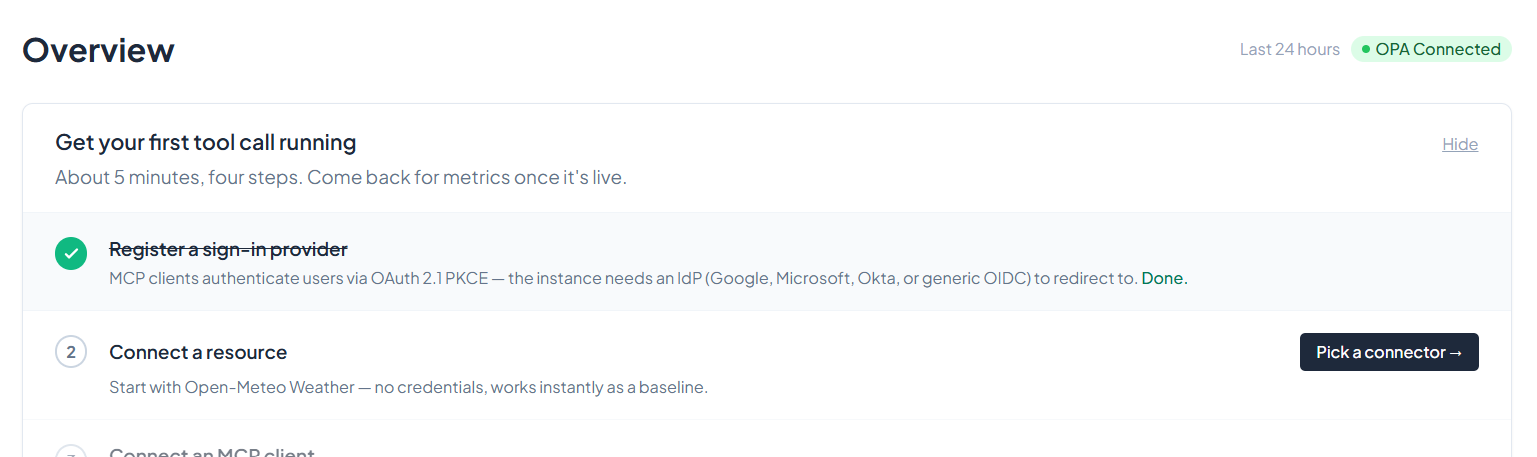
From the environment dashboard — click the Pick a connector button in the quick-setup panel.
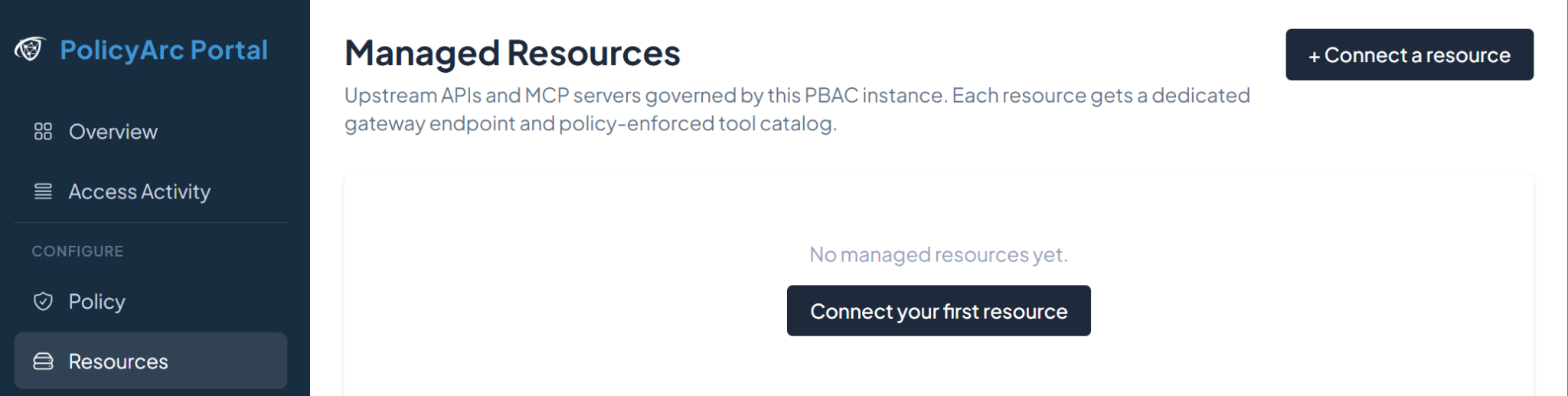
From the Resources menu — open the Resources tab in the left navigation.
Either path lands you on the connector picker:
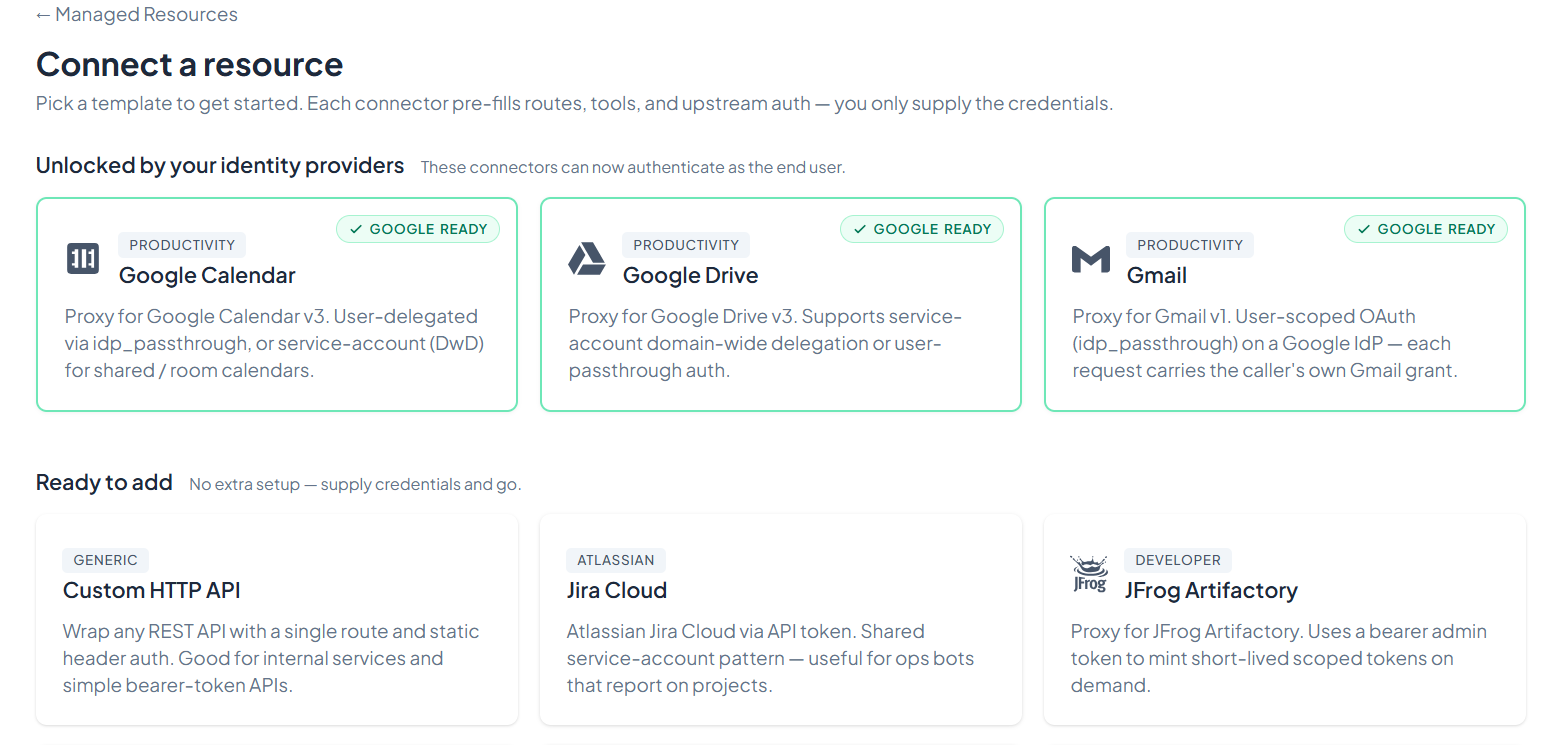
Connectors with a green border are compatible with the IDPs you've already connected. If Google Drive shows green, you're set. If it's grey, finish setting up the Google IDP first.
Click Google Drive.
Step 2 — Choose the authentication mode
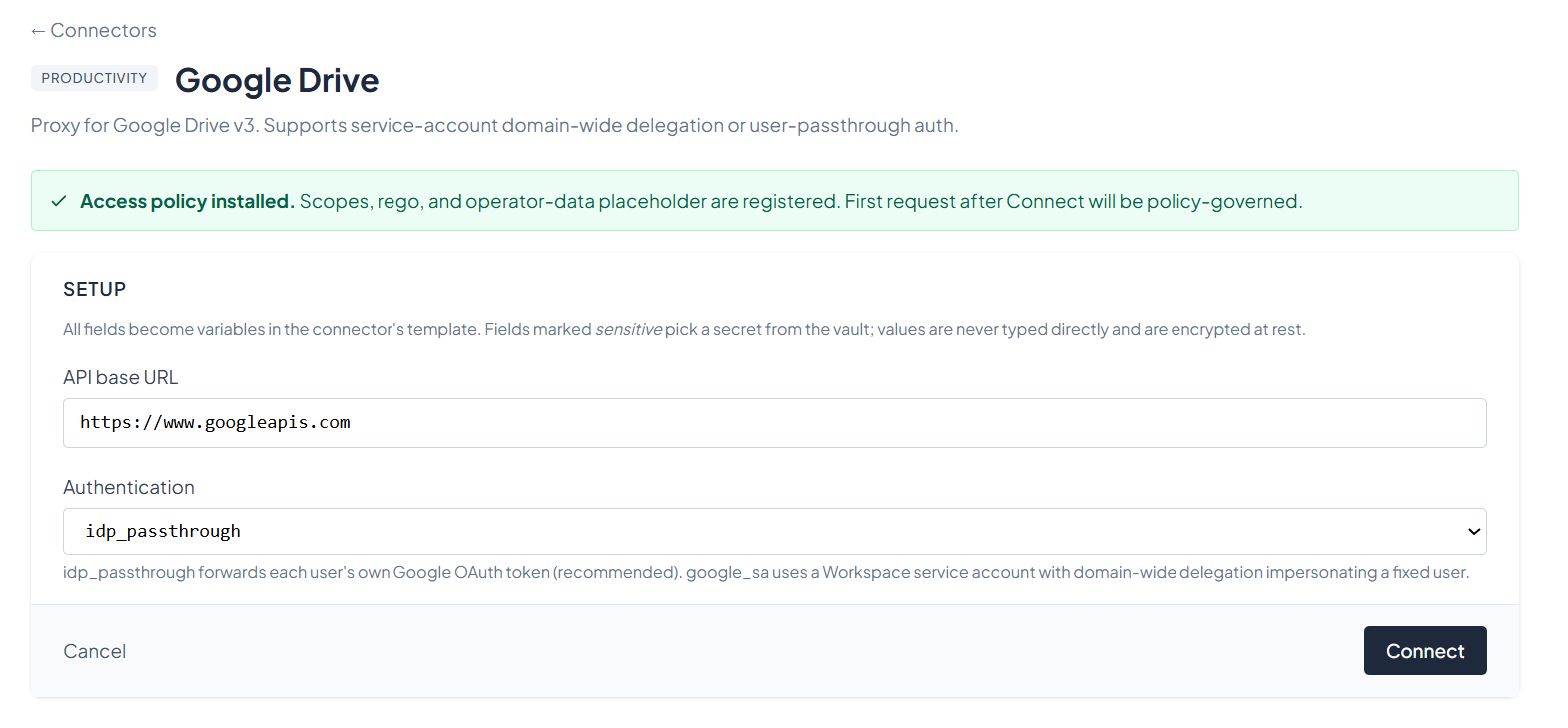
Google Drive supports two authentication modes:
| Mode | What it does | When to use it |
|---|---|---|
idp_passthrough (recommended) | Forwards each user's own Google OAuth token. Every call is made as the signed-in user. | Most cases. Users only see their own files; Google's per-user permissions apply naturally. |
google_sa | A Workspace service account with domain-wide delegation impersonates a fixed user for every call. | When you need a centralized identity to act across the org — e.g., bulk processing, scheduled jobs. Requires Workspace admin setup. |
For this walkthrough, pick idp_passthrough and click Connect.
Step 3 — Confirm the connector
After connecting, you'll see the connector's status screen. This is your at-a-glance view of which tools are available and how the connector is wired.
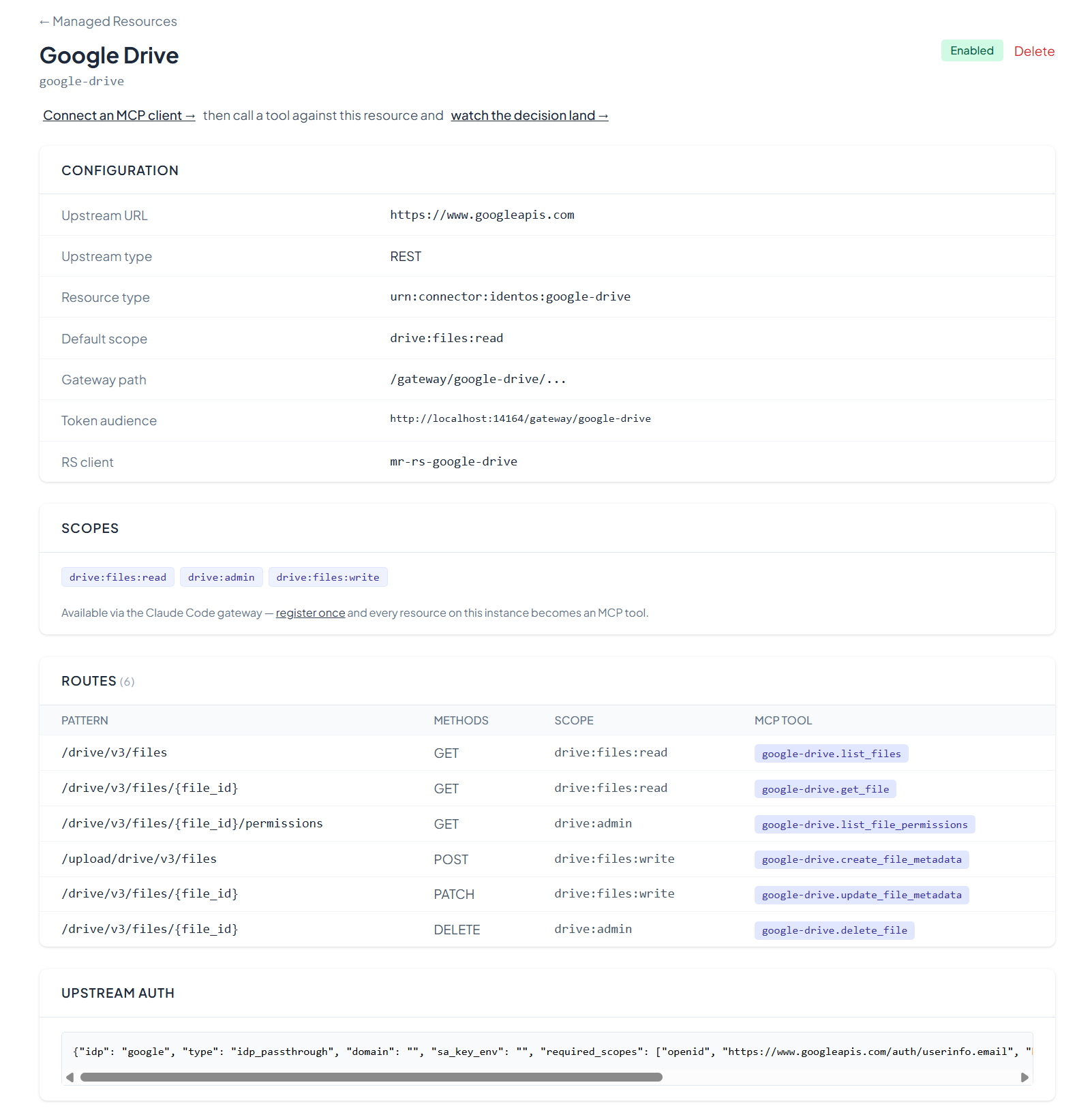
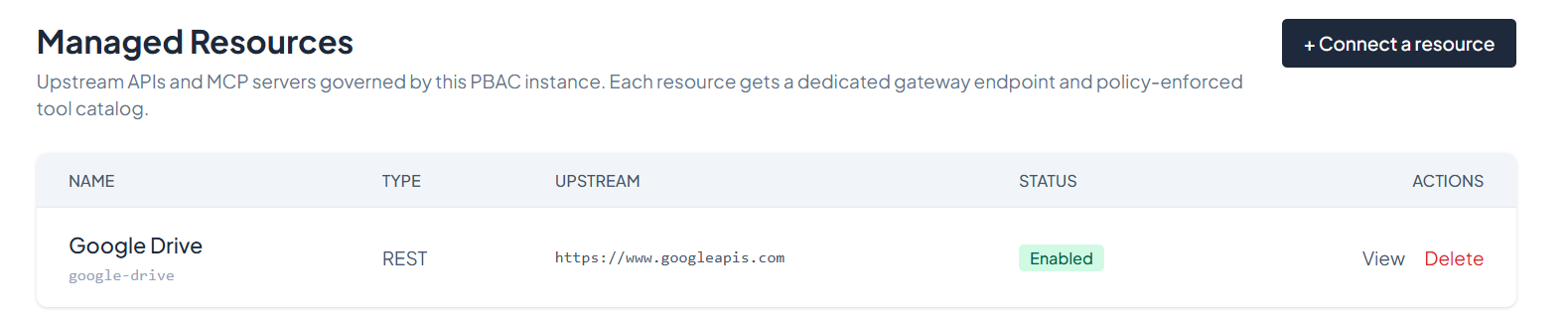
You can return to this view any time from the Resources menu by clicking View on the Google Drive entry.
What's next
The Google Drive tools are now available on your gateway. Pick an MCP client to wire up:
- Recommended: Claude Code — fastest path to verify everything works end-to-end.
- All MCP clients → — Cursor, Claude Desktop, VS Code, and more as we add them.
The google_sa walkthrough — service account creation, domain-wide delegation, scope authorization in the Workspace admin console — instructions are coming soon. Contact us if you need it now.