VS Code (with GitHub Copilot Chat)
VS Code talks to MCP servers via the GitHub Copilot Chat extension, which registers servers in its own mcp.json (separate from Cursor's). The config opens through the command palette.
You need an environment with at least one IDP and one connector. See Start Here if you're not there yet. Grab the VS Code snippet for your environment from the Admin Portal's Clients tab.
SETUP
Step 1 — Install GitHub Copilot Chat
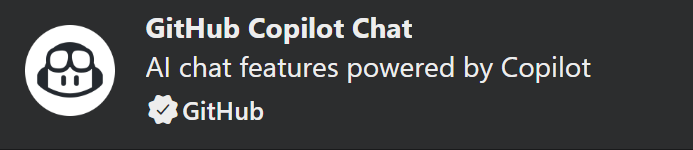
Open VS Code, go to Extensions, and make sure GitHub Copilot Chat is installed.
Step 2 — Open the MCP user configuration
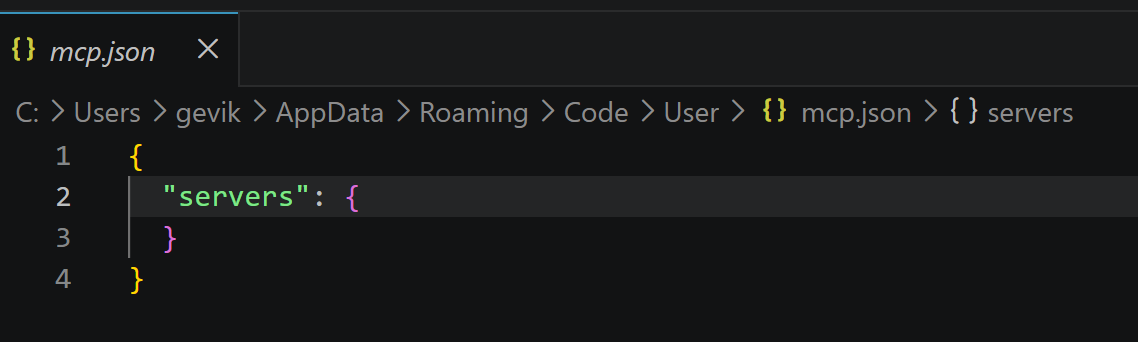
In the command palette (Ctrl+Shift+P / Cmd+Shift+P), type >MCP: Open User Configuration and select it.

This opens mcp.json in a new tab.
Step 3 — Paste the PolicyArc snippet
In the Admin Portal, open the Clients tab and copy the VS Code snippet:
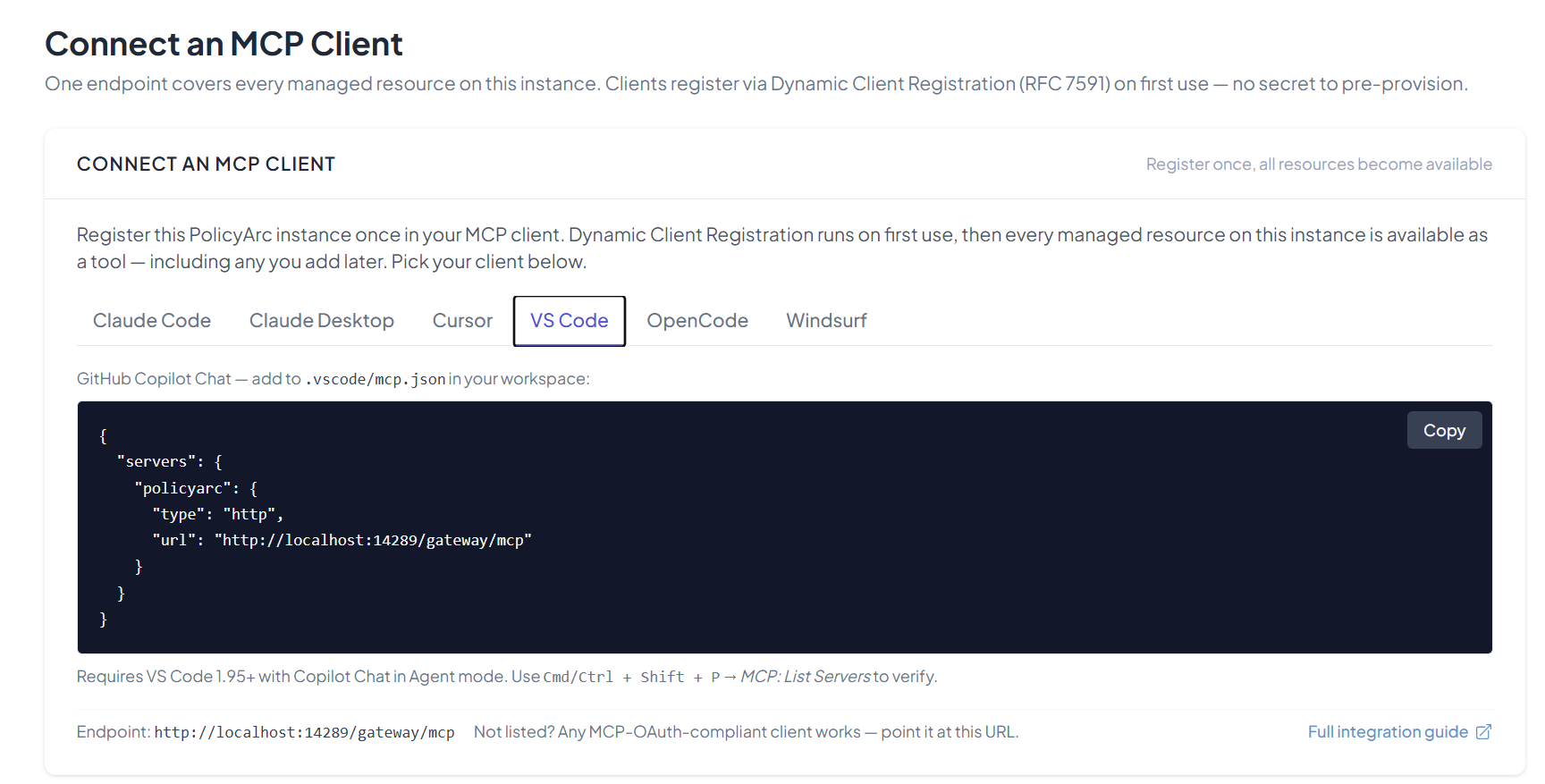
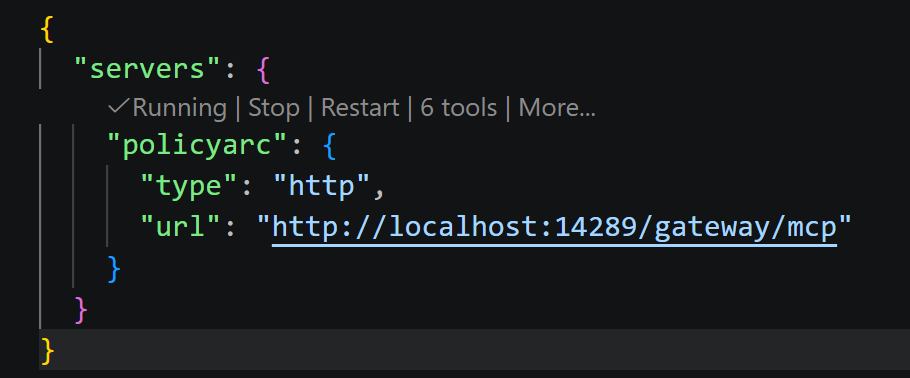
The snippet has this shape (your URL will be different):
{
  "servers": {
    "policyarc": {
      "type": "http",
      "url": "http://localhost:14289/gateway/mcp"
    }
  }
}
Paste it into mcp.json and save. VS Code embeds inline action buttons into the file — you'll see Start | tools | … above your server entry.
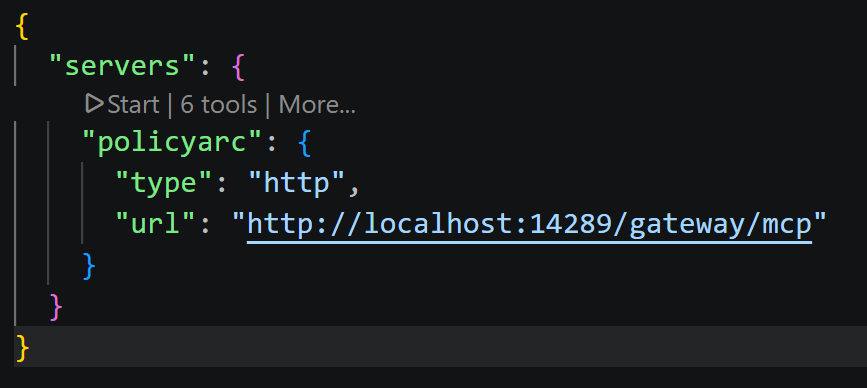
If a previous session already connected to PolicyArc, the tools counter shows a number greater than zero before you even click Start. That's a cache, not a leak — fresh sessions start at zero.
AUTHENTICATION
Step 4 — Click Start
Click the Start action button. A browser tab opens with your IDP sign-in.
When sign-in completes, the browser shows:

Back in mcp.json, the action buttons update to show Running and the tools counter.
VIEW AVAILABLE TOOLS
Click the configuration button in the Copilot Chat window (second from the right).

Scroll to the policyarc entry to see the tools your user is allowed to call.
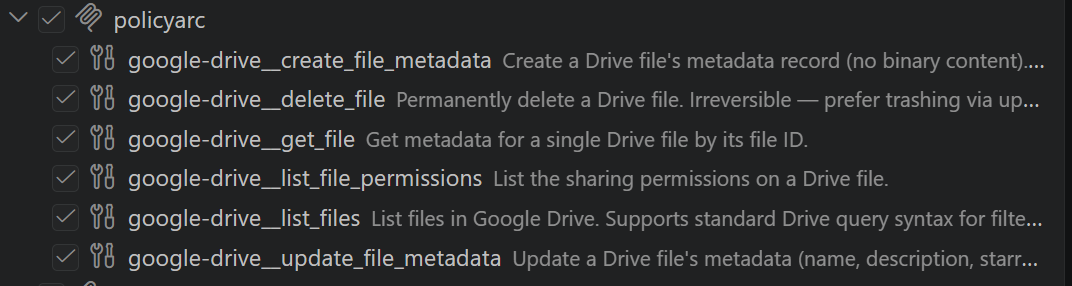
The list reflects the user's policy at this moment. As you change policy data, this list changes on the next refresh.
USING THE TOOLS
Ask Copilot's chat agent to do something that maps to one of the tools.
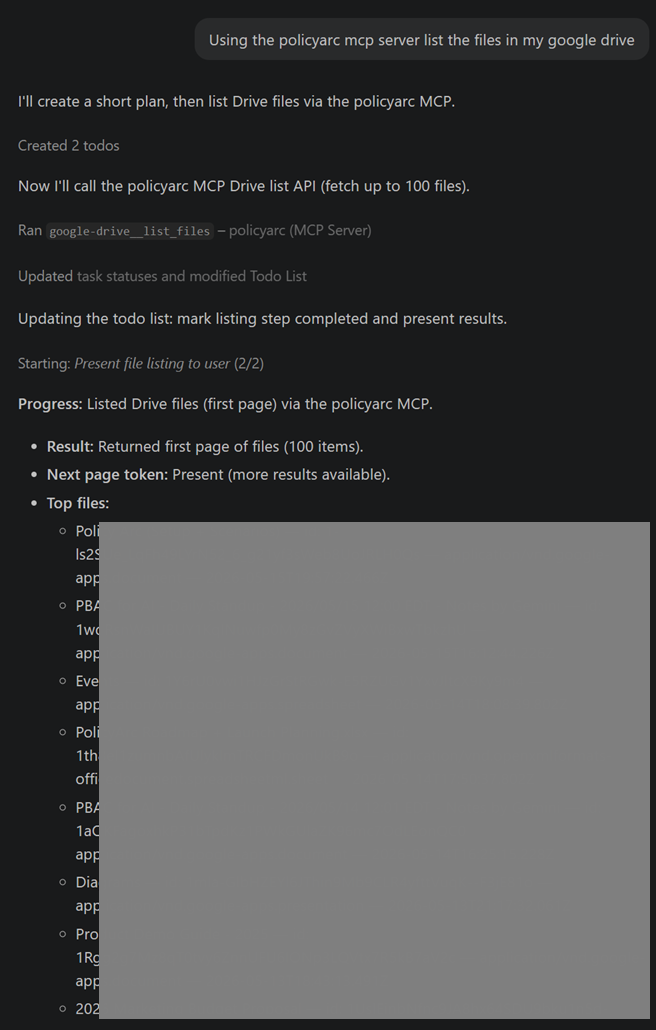
Every call lands an audit row in Admin → Audit Log.
Troubleshooting
- Command palette doesn't show
MCP: Open User Configuration— the Copilot Chat extension isn't installed or is outdated. Reinstall and restart VS Code. - Start button does nothing — open the Output panel and select the Copilot MCP channel. URL mismatches and bad JSON show up there.
- Tools count stuck at 0 after sign-in — your user is authenticated but has no scopes. Check Admin → Policy Data.